
On an urban exploration trip, you often take more locations than you actually visit. A place may be inaccessible, the light disappointing, or something else may catch your eye. You want to choose from your own collection without searching for everything again.
You can take a collection of individual destinations or prepare an itinerary. Choose the approach that suits your trip.
Individual locations or a planned route?
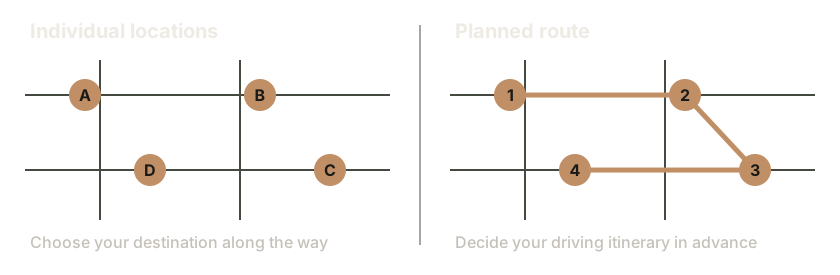
A location collection lets you choose freely along the way. A planned route determines how you travel between selected places. For an entire collection, use an app that imports location files; for a planned itinerary, use Plan.TomTom.com and synchronisation with GO Expert. A few favourites can be saved individually in your TomTom account.
The old guide converted KMZ to OV2. TomTom still offers OV2 import in its web planner for certain navigation devices. This does not establish support in the current phone app: I found no confirmed procedure in its current documentation. A GO Expert navigation device and the GO Expert phone app are different products. TomTom
1. Save your collection as KML or KMZ
If you already have a KML or KMZ file containing your places, use it in a location app. You do not need to convert it to OV2.
- Google Earth in a browser: open your project and use the three-dot menu to export it as KML. Google Earth
- Google My Maps: open your own map on a computer. In the left-hand menu, choose the KML/KMZ export option and follow the choices shown. This is My Maps, rather than an ordinary saved list in Google Maps. Google My Maps
Put the file somewhere accessible on your phone, using a clear name such as Photography-trip-region.kmz.
2A. Android: your collection in PinPoi
According to its developer, PinPoi imports KML, KMZ and OV2. The collection stays in PinPoi; you pass a selected destination to your navigation app. This does not import the whole list into GO Expert.
- Open PinPoi and select Manage collections.
- Add a collection, give it a name, choose your local KML or KMZ file as its source and start importing.
- Search the collection, for example around your current position. View the results as a list or on the map.
- Open a location. Its map button opens a navigation app; according to the developer, a long press opens an app chooser. Select GO Expert if it is offered.
See the PinPoi. The list works offline; displaying the map requires internet. Check on your own phone whether GO Expert appears in the app chooser.
2B. iPhone: your collection in POIViewer
According to its developer, POIViewer imports KML/KMZ and OV2 collections of individual places. It is a paid app. Its description also lists TomTom GO as a navigation option.
- Put your KML or KMZ file in Files, for example in iCloud Drive.
- Use the iOS sharing or opening function to open the file in POIViewer. The developer supports iOS file providers and “Open in”.
- Browse the imported list and choose the place you want to visit.
- Open that place’s navigation choices and select TomTom GO if available.
The developer names TomTom GO; compatibility with the current GO Expert name and version has not been tested on an iPhone here. KML/KMZ import concerns places, not complete routes. POIViewer
Try a small sample first
Use a file containing a few recognisable public places. Check that names and map positions are correct and that GO Expert receives the selected destination before using your entire collection. If GO Expert is absent, the connection on your phone remains unconfirmed.

3. Plan an itinerary through your TomTom web account
If you know which places to visit and in what order, a route is more suitable. TomTom confirms this synchronisation with GO Expert on Android and iPhone.
- Open Plan.TomTom.com and sign in. Use the same TomTom account in the phone app under Menu → TomTom Services.
- Find your destination in the web planner. Add the other places as waypoints and check their order, the vehicle and route preferences. TomTom
- Save the route and confirm synchronisation. For an existing route, enable synchronisation under My Items → Routes.
- Check your saved routes in the app. If the route is missing, check synchronisation in TomTom Services and confirm that both use the same account.
The web route arrives as a track. Waypoints influence its path but do not appear as separate stops in the app. For visible stops, build the route directly in the app. For Android only, TomTom also describes sending stops through the planner’s export function before saving. TomTom
Already have a GPX file?
The web planner imports GPX tracks through My Items → Routes. Then enable synchronisation for the imported track. A file containing only individual points is different from a track: changing its extension does not create a driving route. TomTom
4. Save a few individual favourites
For a short list, search for each place in Plan.TomTom.com using an address or coordinates and save it as a place with a recognisable name. Find these under My Items → Places. This adds places manually; it does not import an entire file. TomTom
TomTom links places and routes to your account. Check on your phone that the required information is available before leaving. TomTom
Comments