

Introduction
Magic Lantern adds functions to certain Canon EOS cameras: focusing aids, more detailed exposure information, an intervalometer and RAW video, for example. What you get depends on the camera model, Canon firmware and chosen ML build.
My original guide was based on the EOS 7D and 5D Mark III. The photographs and screenshots have been retained. They show older menus; names and buttons may differ on your camera. This explanation was compared with the official documentation and shortened in October 2026.
Cameras, installation and support
Which cameras?
Always select your exact model on the official download page. A build for the EOS 7D does not fit the 7D Mark II. The same applies to the 6D and 6D Mark II. An EOS M listing does not mean the M50 is supported.
Builds are now also listed for the following models whose support arrived later. When checked on 20 October 2026, these were development builds dated 20 June 2025:
| Camera | Canon firmware for this build |
|---|---|
| EOS 200D / Rebel SL2 | 1.0.1 |
| EOS 6D Mark II | 1.1.1 |
| EOS 7D Mark II | 1.1.2 |
| EOS 750D / Rebel T6i | 1.1.0 |
This does not promise that every function described below works on those cameras. Read the model page and build notes. The EOS 200D Mark II, known internationally as the 250D, is not covered by the 200D build, for example. If your model is absent from the download list, do not assume support. That also applies to other similarly named cameras, such as the R5 and R10.
Installation, risks and removal
ML runs from the memory card, but installation does change a startup setting in the camera. It does not replace Canon firmware. The old statement that nothing changes in the camera was therefore too strong. I cannot guarantee trouble-free operation or continued warranty coverage either. Canon does not support Magic Lantern; the project warns of possible damage and warranty implications.
Use the official installation guide for your model and firmware. First check the firmware version, fully charge the battery and back up your photographs. Extract the entire ML archive to the root of the card, then follow the firmware-update procedure and camera-screen instructions. Keep any ROM backup separately. Newer Canon firmware is not automatically suitable: use the version specified with the download and follow the model-specific downgrade instructions.
Do not remove ML by simply deleting files from a bootable card. Formatting within the camera and completely uninstalling from the camera are different operations. Follow the removal steps on the installation page. After opening the card door, wait for the card LED confirmation, or at least five seconds, before taking out the card. If the camera freezes, remove the battery and consult troubleshooting.
Controls
On many supported cameras, the Trash button opens the ML menu. Navigate with the dials, arrows or joystick; SET changes a value and Q often opens a submenu. Exact controls appear at the bottom of the screen and differ by model. In LiveView, INFO/DISP cycles through the available displays.
Start with one function at a time. If something is missing, first check photo or movie mode and the Modules tab. Functions such as Auto ETTR and Dual ISO may only appear after loading the relevant module and restarting the camera.
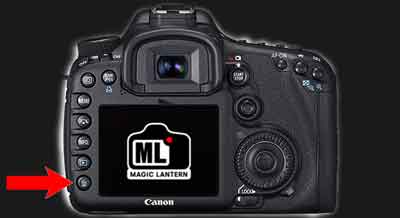


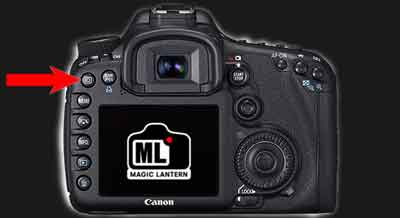
Audio
Audio settings apply to video and are not available on every camera. Keep the meters below their maximum; monitor the recording with headphones too if your camera and connection support it.
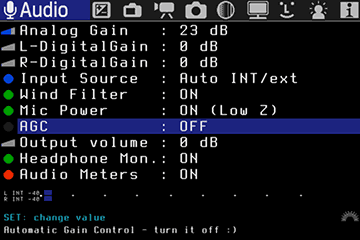
Analog Gain
Analog Gain controls analogue amplification of the microphone signal. Choose an adequate level without clipping.
L/R- Digital Gain
L/R Digital Gain digitally amplifies the left and right channels. It cannot repair distortion that occurred earlier in the recording chain.
Input Source
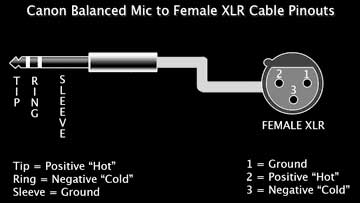
Choose the internal microphone, external stereo input or a combination by channel. Auto int/ext switches according to the connected microphone. Only use a balanced input with the correct cable and pin assignment.
Wind Filter
Reduces wind noise. Not every camera has this option; a windshield may still be needed.
Mic Power
Supplies power to microphones that require it. It is not simply an on/off switch for the internal microphone. The correct setting depends on your microphone and input.
Beep, test tones
Sets beeps and test tones. Watch the volume of connected headphones when testing.
Output Volume
Adjusts monitoring volume. Its name and operation may differ by model; it does not replace setting the recording level.
Audio Meters
Shows audio levels on screen. For external microphones, also check the connection: a plug that fits does not necessarily have the correct wiring.
Expo: exposure
Exposure and white-balance settings are here. Available values depend on the camera, lens and build.
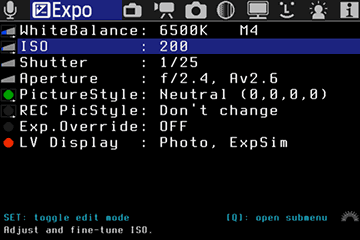
WhiteBalance
Set colour temperature in Kelvin or use WBShift G/M and B/A for green/magenta and blue/amber corrections. RGB multipliers offer further fine adjustment. Auto adjust Kelvin + G/M derives white balance from the image. To use Canon AWB, select it in the Canon menu.
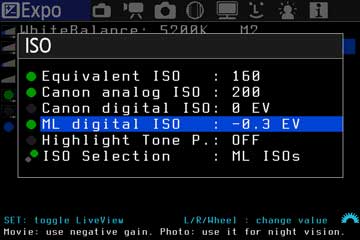
ISO
ISO determines the amplification used to process the camera signal. Increasing ISO does not literally make the sensor more sensitive by raising its voltage. That old explanation has been replaced.
Equivalent ISO is the final rating; Canon analog ISO and the digital ISO settings show how it is obtained. The official menu help recommends leaving Canon digital ISO at 0 EV for image quality. Start with an appropriate base ISO and control exposure with shutter speed and aperture. No set of intermediate values is best for every camera and scene.
Shutter
Adjusts shutter speed. In video, the combination of shutter speed and frame rate largely determines how movement appears. Simply selecting 1/8000 second does not create slow motion.
Aperture
Adjusts aperture. Some combinations of camera, electronic lens and Expo. Override offer finer increments. Do not expect 1/8-stop steps with every lens.
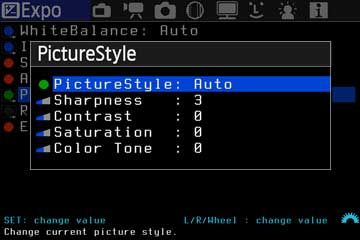
PictureStyle
Select and adjust Canon picture styles. They affect JPEG and conventional video; with RAW, post-processing is decisive. A preview style is not the same as changing RAW sensor data.
Auto ETTR
Auto ETTR seeks an exposure that makes full use of RAW data without clipping important highlights. It may require ettr.mo. Set limits such as the slowest shutter and allowed highlights. The image may look bright; bring it back in post-processing. ETTR does not guarantee protection from all overexposure.
Expo. Lock
Keeps exposure constant by adjusting other selected values when you change shutter speed, for example. Choose which combination of shutter, aperture and ISO ML may adjust in the submenu.
Expo. Presets
Assign SET or INFO to switch between two exposure settings. Set the first combination, press the assigned button and create the second. Press the same button to switch back.
Dual ISO
Dual ISO uses two ISO gains within one exposure. It can provide more usable shadow detail, at the cost of resolution and possible moiré or other artefacts. It is not a fixed promise of 14 EV. Load dual_iso.mo where required and process the RAW files with suitable software such as cr2hdr. First try a modest ISO difference and check the result.
Expo. Override
On supported cameras, enables exposure settings normally restricted by the Canon menu. Change values through ML and check the actual recording. Old examples for the 500D, 50D and 1100D do not automatically apply to newer models.
ExpSim
Enables or disables exposure simulation in LiveView. The display suggests the exposure but does not replace checking the histogram and actual image.
Overlay: guides and metering
Overlays help with exposure, focusing and framing. They normally appear only on screen. With HDMI recording they may be included in the output, so check beforehand.
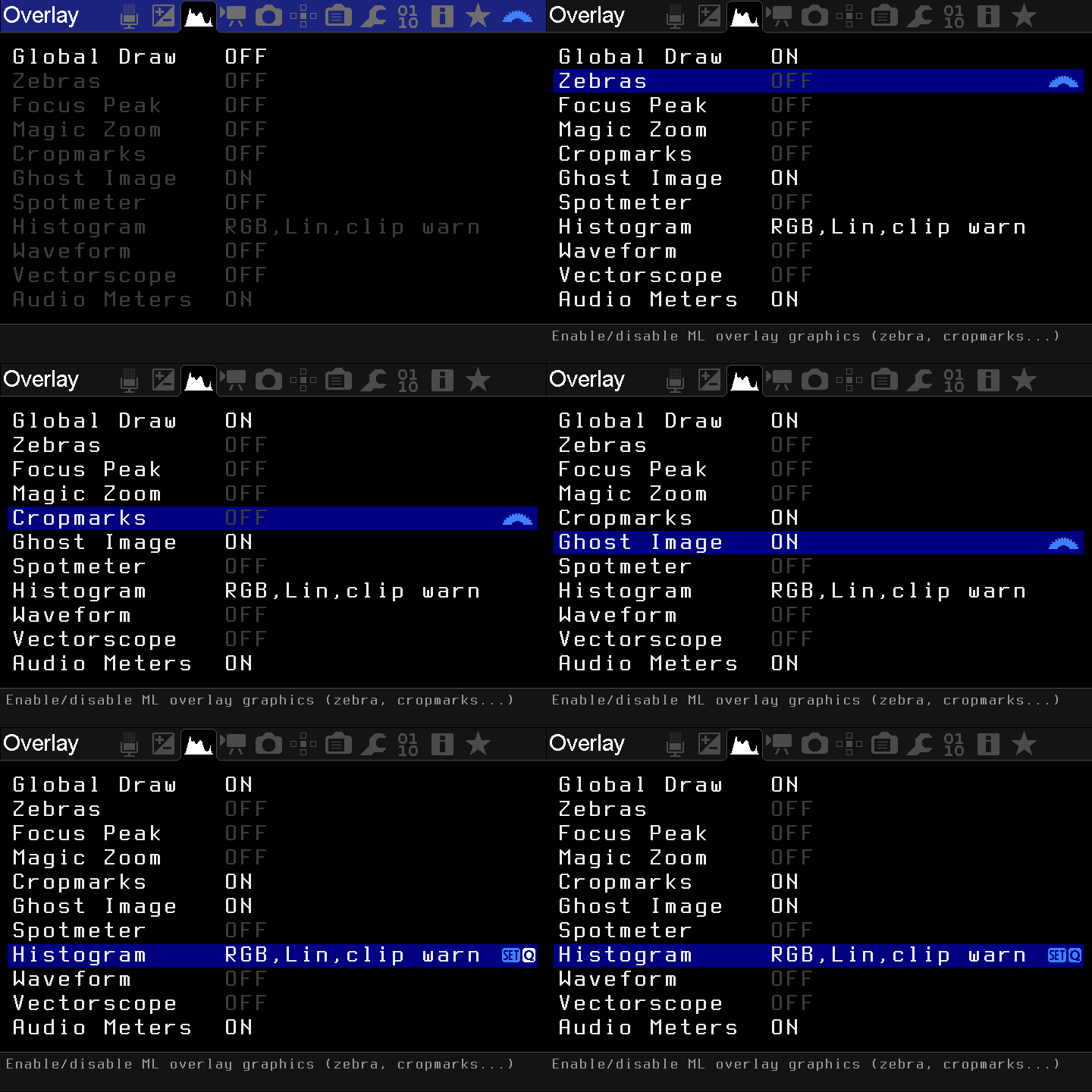
Global Draw
Enables or disables extra display information in selected modes. Many active overlays consume processing power; reduce them if RAW video drops frames.
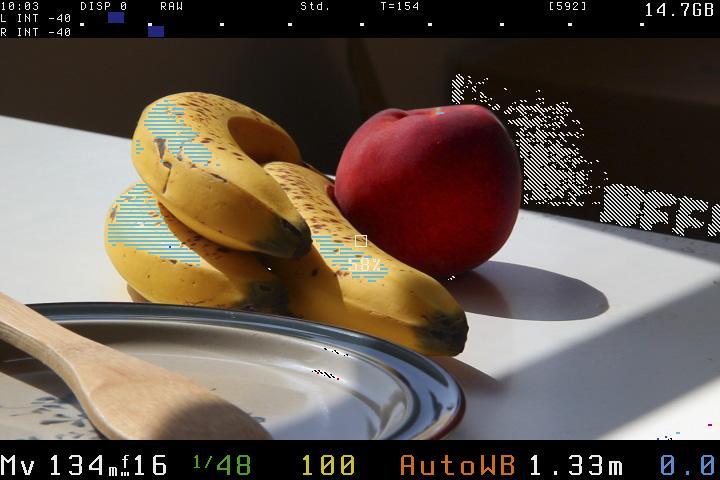
Zebras
Marks areas that are too bright or dark. Choose colour space, thresholds and display during recording. RAW zebras and zebras based on the JPEG preview are not necessarily equivalent.
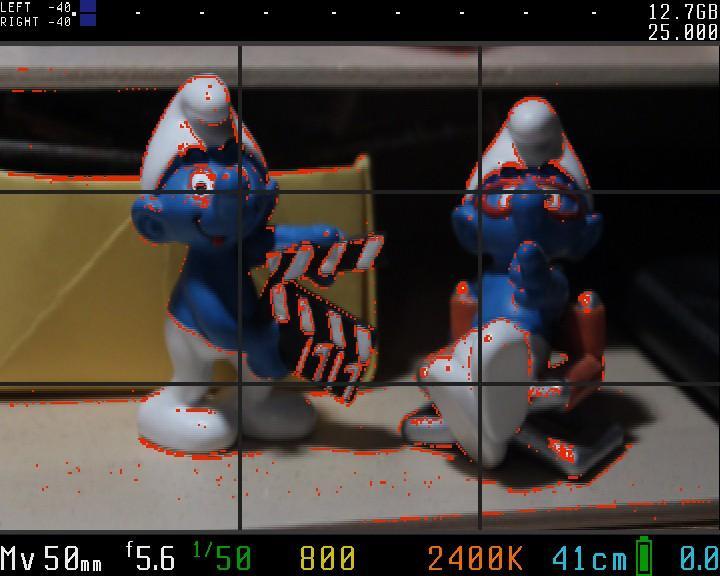
Focus Peak
Marks high-contrast edges as a focusing aid. Adjust method, threshold and colour. The marking helps manual focusing but does not guarantee that the intended detail is sharp.
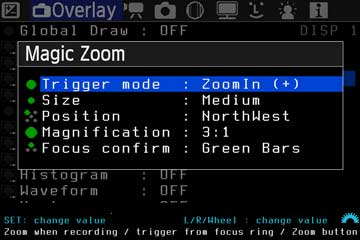
Magic Zoom
Shows a magnified part of LiveView. Choose trigger, size, position and magnification. Depending on model and build, activation uses a half-press, focus ring or zoom button. Some overlays are disabled while Magic Zoom is active.

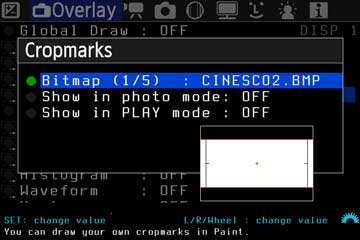
Cropmarks
Shows guide lines or crop frames. Choose the bitmap and whether it also appears during playback. The lines do not crop the recording themselves.

Ghost Image
Overlays an earlier image on LiveView to align a new photograph. Select the image in playback, open LiveView and move the overlay with the arrows. It does not automatically combine images into a double exposure.
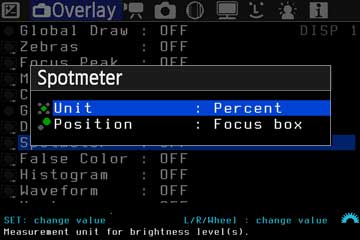
Spotmeter
Measures brightness at the centre or focus box. Choose an appropriate unit, such as percentages, RGB or RAW EV.

False Color
Maps brightness to colours. Choose a palette for exposure, banding or evenly lit greenscreen work, for example. Always check what the selected palette means.

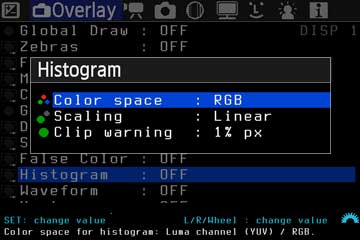
Histogram
Shows the distribution of brightness or RGB channels. Where available, choose RAW data, linear or logarithmic scaling and clipping warnings. A RAW histogram may differ from Canon’s preview-based histogram.


Waveform
Shows brightness across the width of the image in a small, large or full-screen window. Unlike a histogram, it also shows the horizontal positions of bright and dark areas.
Movie: video
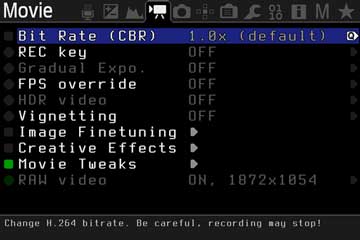
This menu contains video functions. Conventional H.264/MOV recording and ML RAW video have different settings and limitations. A RAW-video build does not mean every resolution or frame rate can record continuously.
Bit Rate
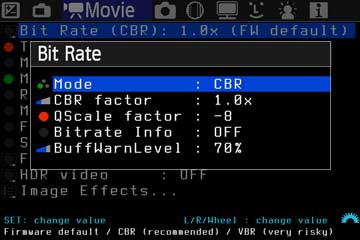
Controls H.264 bitrate. CBR uses a factor relative to the default; QScale targets quality with variable bitrate. A higher setting can overload the buffer or card and stop recording. Start at the default and test your combination.
Bitrate Info
Shows bitrate and buffer use. The warning threshold determines when ML limits demanding display functions.
Time Indicator
Shows elapsed time or estimated remaining card or file time. With variable bitrate, remaining time is not a fixed promise.
Movie Logging
Writes recording information to a log beside the movie, allowing you to trace settings and changes.
Movie Restart
Restarts a stopped recording when the selected circumstances allow. Frames are missing between clips; this does not guarantee uninterrupted recording.
REC/STBY notify
Makes recording or standby status more visible. Choose a notification you recognise clearly while filming.
Movie REC key
Lets the shutter button start or stop video. Check the required press duration and whether both actions are enabled.
Force LiveView
Keeps LiveView active where the camera and build support it. Monitor temperature and power consumption during prolonged use.
Shutter Lock
Locks video shutter speed to prevent accidental changes.
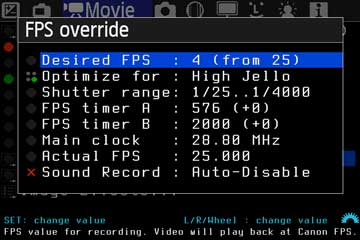
FPS override
Changes actual frame rate. Desired FPS is the request; Actual FPS shows what is achievable. File playback speed may still follow the Canon setting. Audio, exposure and rolling shutter may change. Do not adjust the timers at random.

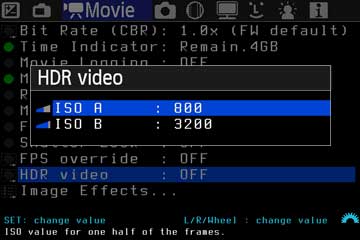
HDR video
Alternates ISO between successive video frames for later combination into a wider brightness range. Post-processing is required and movement may cause problems. This differs from Dual ISO within a single image.
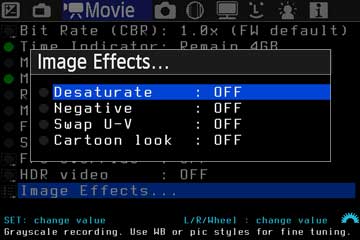
Image Effects
Applies effects such as desaturation, negative or swapping colour channels. Use them deliberately and check whether they alter the recording itself. The original link to slit-scan photography provides background on creative distortions.
Shoot: sequences and timers
This menu contains sequences, timers and alternative recording triggers.

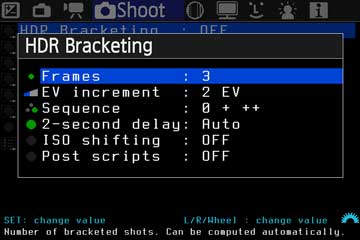
Advanced Bracketing
Make an exposure bracket with the desired number of frames, EV spacing and order. Optionally set a start delay and decide whether ML may change shutter speed, ISO or a combination. Keep the camera fixed if you intend to merge the images.
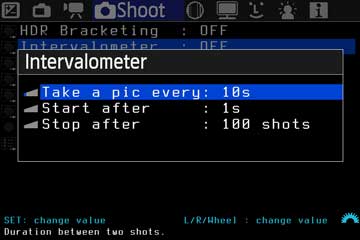
Intervalometer
Set the interval, start delay and number of pictures. Use the sequence for timelapse or star trails. Choose an interval suited to exposure and processing: a 30-second exposure starting every 35 seconds is an example, not a fixed rule.

Bulb/Focus Ramping
Gradually changes exposure or focus during a sequence, useful around sunrise or sunset. This older feature and its name vary by build; consult current help for the available ramping or interval options.
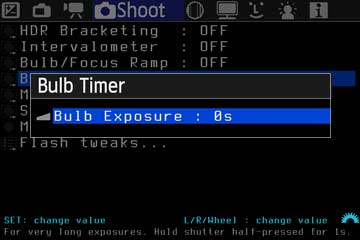
Bulb Timer
Controls long Bulb exposures. Set the duration and use the indicated start and stop controls. Combined with the intervalometer, it can produce a sequence of long exposures.
LCDsensor Remote
Uses the LCD proximity sensor as a shutter trigger on suitable cameras. Near, Away and Wave respond to approaching, withdrawing or waving a hand. Not every camera has this sensor.
Audio RemoteShot
Triggers a photograph at a selected sound level. Set the threshold and test whether camera noises cause unwanted triggering.
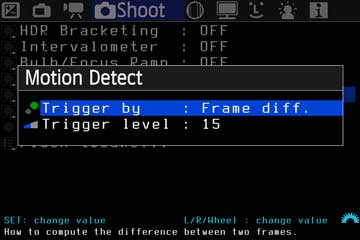
Motion Detect
Responds to image or brightness changes. Select Frame Diff or Expo Diff, sensitivity and detection area. A brightness change can be useful for lightning, but results depend on timing and conditions.
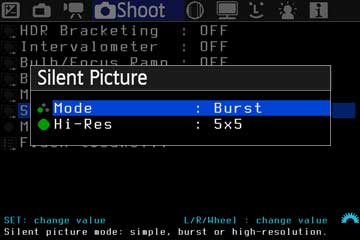
Silent Pictures
Captures from LiveView without normal mirror and shutter movement. Depending on the build, silent.mo may be needed. Older low-resolution modes use LiveView resolution; Full-res has different capabilities and restrictions. File format and maximum resolution therefore vary. Check your DNG or MLV files, especially with motion and short exposures.
Mirror Lockup
Raises the mirror in advance to reduce vibration. This is intended for cameras with a mirror; an EOS M works differently.
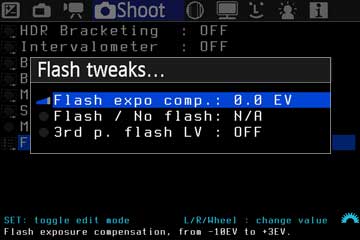
Flash tweaks
Controls flash compensation and, where available, alternating flash and non-flash pictures. Use the external-flash option only when your flash and camera require it.
Focus: focusing
These functions control or assess focus. Not every lens supports electronic stepping or reports reliable distance information.
Trap Focus
In the appropriate manual-focus mode, takes a picture as a subject comes into focus. Choose an AF/shutter-button trigger or continuous operation. LiveView and viewfinder behaviour differs by camera and lens.
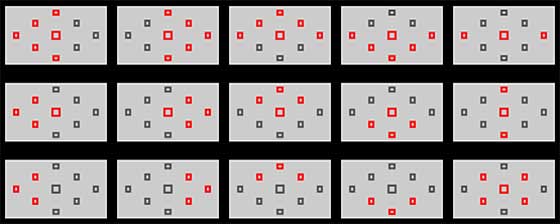
Focus Patterns
Selects an autofocus-point pattern. Set it with the indicated controls and check in the viewfinder. Not every camera shows a working pattern in LiveView too.
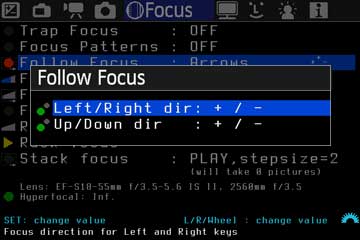
Follow Focus
Moves focus with arrows or joystick. For a transition between two points, set start and end points and use Rack Focus to move between them. Test direction, speed and endpoint before the real take.
Focus StepSize
Sets focus-step size. Smaller steps give more control; actual movement also depends on the lens.

Focus StepDelay
Sets a pause between focus commands. This is not a fixed focusing time for the lens.
Focus End Point
Stores the second point of a focus transition. Focus, confirm as instructed by menu help, then move focus to the other point.
Rack Delay
Where available, sets the delay before a focus transition. In newer menus it may be under Rack Focus or Focus Settings.
Stack focus
Takes a sequence with shifted focus. Choose range and step size and check that sharp areas overlap. Merge the photographs afterwards in suitable software.
Focus Dist
Shows distance reported by the lens. Missing or inaccurate distance information also makes depth-of-field calculations less reliable.
Hyperfocal
Hyperfocal distance is a focusing distance at which, under the depth-of-field calculation used, roughly half that distance to infinity appears acceptably sharp.
DOF near
The nearest boundary of calculated depth of field.
DOF far
The farthest boundary of calculated depth of field.
Display: screen settings
Most settings here change the display, not the saved image. With an external recorder, check what HDMI outputs.
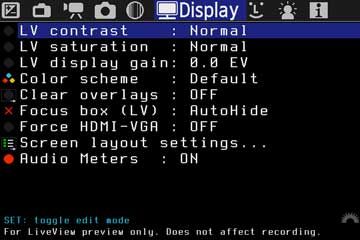
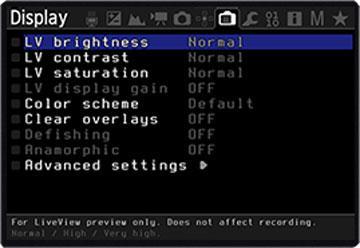
LV Contrast
Changes LiveView contrast, for example to aid focusing with a flat picture style.
LV Saturation
Changes LiveView colour saturation. A grey image can help concentrate on brightness and focus.
LV Display gain
Brightens the LiveView preview in low light. It does not brighten the actual photograph.
Color Scheme
Chooses display-information colours and brightness. A dark scheme may suit night photography.
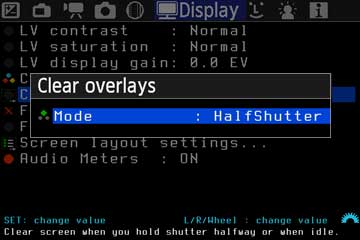
Clear Overlays
Hides overlays on a half-press, when idle or always. Always also removes useful values from the preview; menus remain available.
Focus box (LV)
Shows or hides the LiveView focus box.
Defishing
Corrects a fisheye preview for supported combinations. It does not automatically correct the saved RAW file.
Anamorphic
Stretches the preview to the correct proportions for anamorphic shooting. Select the ratio appropriate to your optics.
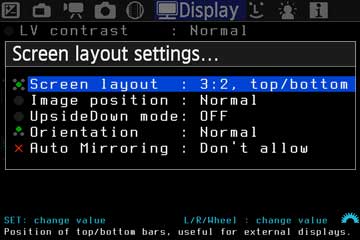
Advanced settings
Adjusts display layout, position, rotation and mirroring. Force low HDMI resolution only if your monitor or recorder needs it.
Level Indicator
Shows an electronic level if the camera supports it. Axes and values vary by model.
Prefs: preferences
Set controls, playback, power use and stored preferences here. The layout may differ from the older screenshots.

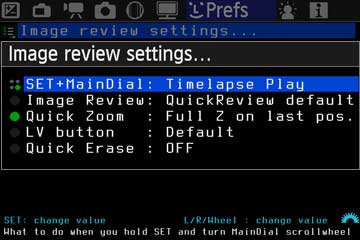
Image review settings
Selects extra playback functions, such as comparing two images, reviewing an exposure bracket or browsing a timelapse quickly. Not every option supports every file format.
Image review
Controls whether ML uses Canon’s normal post-shot preview or switches to playback with immediate zoom.
Quick Zoom
Zooms faster or to 100% with one press, at the centre, AF point or last position. Use it to check sharpness.
LV Button
Assigns another playback task to the LiveView button, such as protecting or rating an image, where supported by your build.
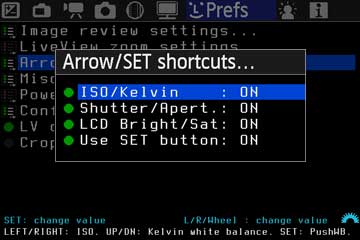
Arrow/SET shortcuts
Assign arrows and SET to frequent settings such as ISO, Kelvin, shutter, aperture or display brightness, reducing menu navigation.
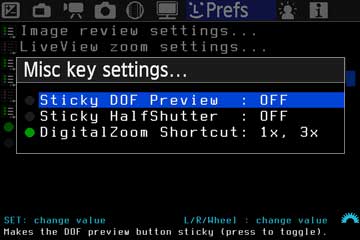
Misc key settings…
Changes some button behaviour. Sticky DOF Preview and Sticky HalfShutter keep a function active without holding the button. DigitalZoom shortcuts are model-specific.
Auto BurstPicQuality
Temporarily reduces image quality when the burst buffer is almost full to keep the sequence going. This may produce JPEG instead of RAW. Use only if appropriate for the shot.

PowerSave in LiveView
Dims or turns off the display and limits overlays when the camera is idle. Choose when saving may operate. For timelapse or remote control, check that the camera still responds at the right time.
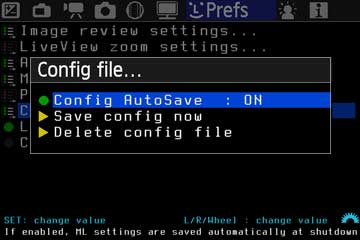
Config file…
ML saves settings in ML/SETTINGS/MAGIC.CFG. Select automatic saving or Save Config now. Delete config file resets ML preferences; keep a copy first if you may need them later.
LV Display Presets
Creates several LiveView displays with different overlays. Switch with INFO/DISP or the indicated button, for example between a clean view and an exposure display.
Crop Factor Display
Shows a 35mm-equivalent focal length. It does not change the lens’s focal length or the photograph.
Display hidden menus
Shows hidden menu items again so you can restore them. Some builds place this under Customize Menus.
Sources and further explanation
The old official user guide is itself marked outdated. I also used the menu help, installation instructions and current model pages. That menu help is not complete for every build either. For problems and model-specific restrictions, consult the official forum.
Comments